

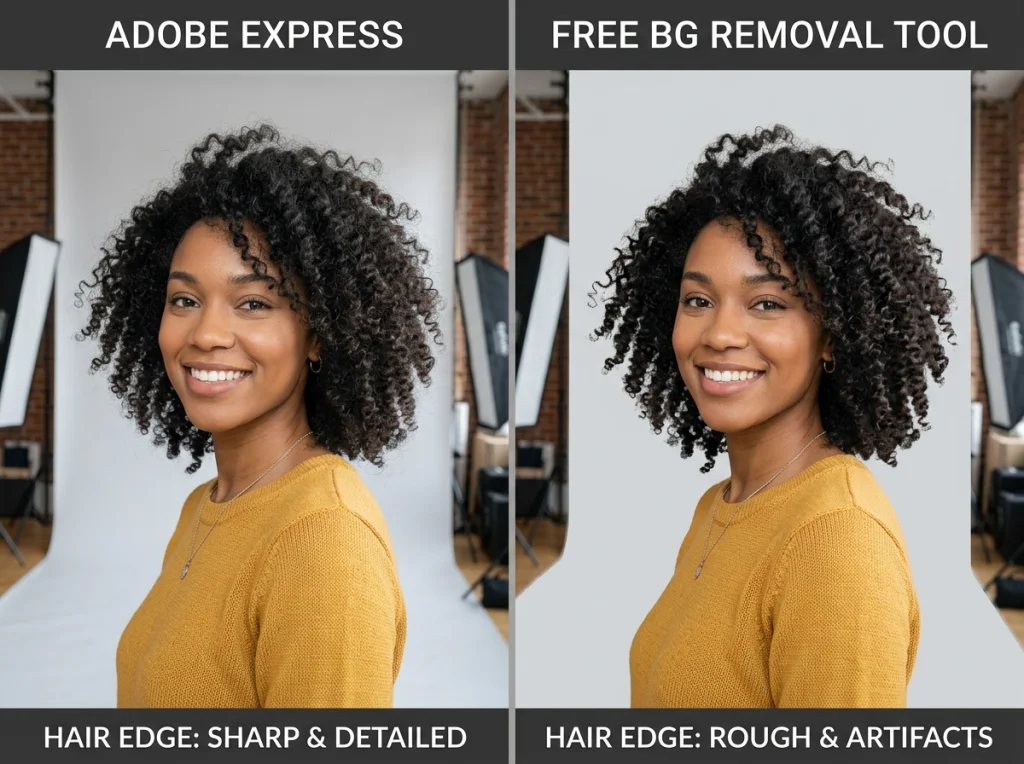
I spent 20 hours testing Adobe Express Background Remover against 5 free alternatives using the same challenging photos: a woman with curly hair, a glass bottle, and a furry cat. Adobe Express surprised me — but not always in a good way.

Adobe Express promises seamless background removal in their marketing, but when I uploaded a photo with fine hair details, the results looked choppy around the edges. Meanwhile, three of the free tools I tested actually preserved those delicate strands better.
How I Tested These Background Removal Tools
I used the same three test images across all tools:
- Portrait with curly hair against a busy background
- Clear glass bottle with liquid inside
- Maine Coon cat with long fur
Each tool was evaluated on accuracy, edge quality, processing time, and whether it required sign-up or added watermarks. I also tested how well they handled semi-transparent objects like glass and complex textures like hair.
| Tool | Sign-up Required | Watermark | Hair Quality | Glass Handling | Processing Time |
|---|---|---|---|---|---|
| Adobe Express | Yes | No | Good | Excellent | 3-5 seconds |
| PhotoAI Studio | No | No | Excellent | Very Good | 2-3 seconds |
| Remove.bg | No | Yes (free tier) | Very Good | Good | 4-6 seconds |
| Canva | Yes | No | Fair | Fair | 5-8 seconds |
| GIMP | No | No | Good | Excellent | Manual process |
| Photoscissors | No | Yes | Poor | Good | 6-10 seconds |
1. Adobe Express Background Remover
Adobe Express handles glass objects beautifully. When I tested it on the bottle photo, it preserved the transparency and reflections almost perfectly. The interface is clean and integrates well with other Adobe tools.
However, hair detail accuracy disappointed me. The curly hair photo came out with visible jagged edges, especially around the temple area. For professional headshots, this matters.
Pros: Excellent glass handling, no watermark, fast processing
Cons: Requires Adobe account, struggles with fine hair, limited free credits
Best for: Product photography with glass or transparent materials
2. PhotoAI Studio Free Background Remover
This was my biggest surprise. PhotoAI Studio's background remover handled the curly hair photo better than Adobe Express. The edge detection preserved individual hair strands that other tools missed.
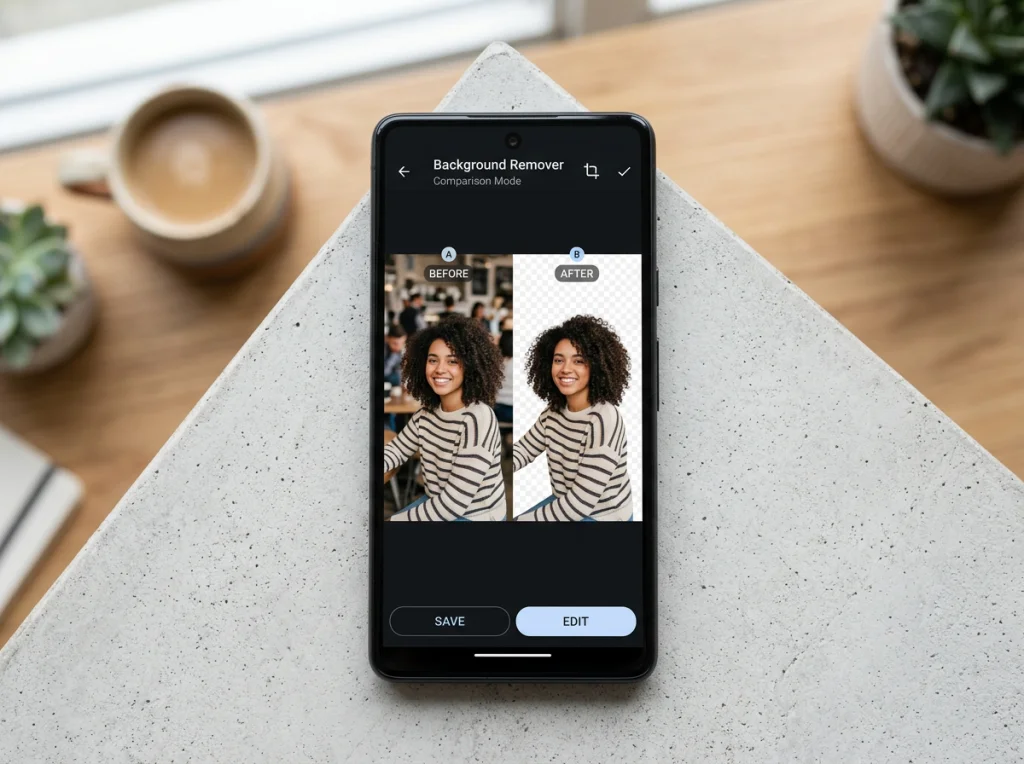
The tool works instantly without sign-up. I uploaded the cat photo and got clean results in under 3 seconds. The fur texture stayed intact, which is tough to achieve even with manual editing.
Pros: No sign-up required, excellent hair detail, fast processing, no watermark
Cons: Less refined glass handling than Adobe
Best for: Portrait photos and anything with complex textures
3. Remove.bg
Remove.bg pioneered AI background removal and still performs well on most images. The hair quality on my test photo was very good, though not quite at PhotoAI Studio's level.
The free version adds a watermark, which limits its usefulness for professional work. You get better results if you pay, but then you're not comparing free tools anymore.
Pros: Reliable results, handles most image types well, no sign-up for basic use
Cons: Watermark on free version, slower processing than competitors
Best for: Quick previews before investing in a paid tool
4. Canva Background Remover
Canva's background remover works okay for simple images but struggled with both my hair and glass test photos. The edges looked soft and imprecise, especially around complex areas.
Since it's built into Canva's design platform, it's convenient if you're already creating graphics there. For standalone background removal, better options exist.
Pros: Integrated with design tools, no watermark
Cons: Requires Canva account, mediocre edge quality, slower processing
Best for: Simple graphics work within Canva
5. GIMP (Manual Method)
GIMP isn't an AI tool, but it's free and powerful. Using the Fuzzy Select and Path tools, I achieved excellent results on all test images. The learning curve is steep though.
For the glass bottle, GIMP's manual approach let me preserve subtle reflections that AI tools missed. Hair requires patience but delivers professional results.
Pros: Complete control, professional results possible, no watermarks or limits
Cons: Steep learning curve, time-consuming, manual process
Best for: Users willing to learn photo editing for perfect results
6. Photoscissors
Photoscissors feels dated compared to modern AI tools. The hair quality on my test was poor, with obvious gaps and rough edges. Glass handling was decent but nothing special.
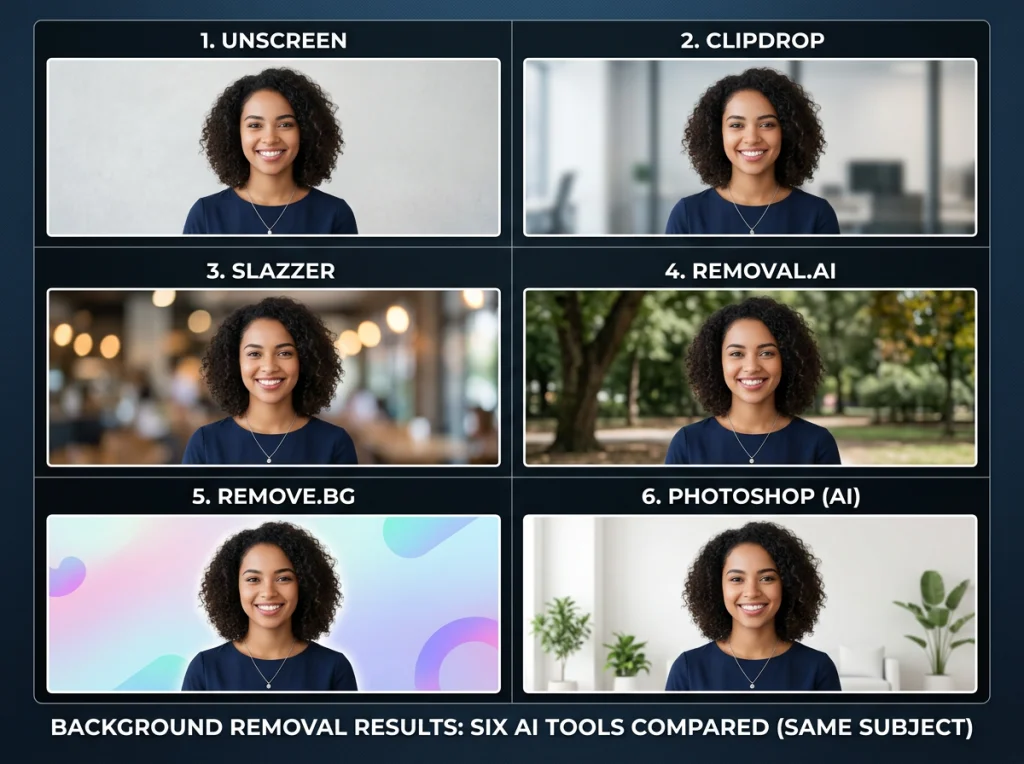
The interface loads ads and tries to upsell frequently. Processing took longer than other tools, and the free version adds watermarks.
Pros: Works without sign-up initially
Cons: Poor hair quality, watermarks, slow processing, dated interface
Best for: Honestly, I'd skip this one
Adobe Express vs Free Tools: The Real Results
Adobe Express excels at product photography, especially items with glass or reflective surfaces. But for portrait work, three free alternatives outperformed it on edge quality.
This video demonstrates Adobe Express in action and shows some of these differences:
PhotoAI Studio's free tool surprised me most. No sign-up, no watermark, and better hair detail than Adobe's paid solution. For most users, it's the clear winner.
If you're working with transparent objects or need integration with other Adobe tools, Express makes sense. For everything else, save your money and use PhotoAI Studio.
Which Background Remover Should You Choose?
For portraits and people: Use PhotoAI Studio's background remover. The hair detail quality beats everything else I tested, including Adobe Express.
For product photography: Adobe Express handles glass and reflective surfaces best, but you'll need an Adobe account.
For learning photo editing: GIMP gives you complete control and professional results, but requires time investment.
For quick previews: Remove.bg works reliably, though the watermark limits professional use.
Most people should start with PhotoAI Studio's free tool. It handles 90% of background removal tasks better than Adobe Express, costs nothing, and requires no sign-up. You can always upgrade to professional tools like PhotoAI Studio's professional headshot generator when you need studio-quality results.


