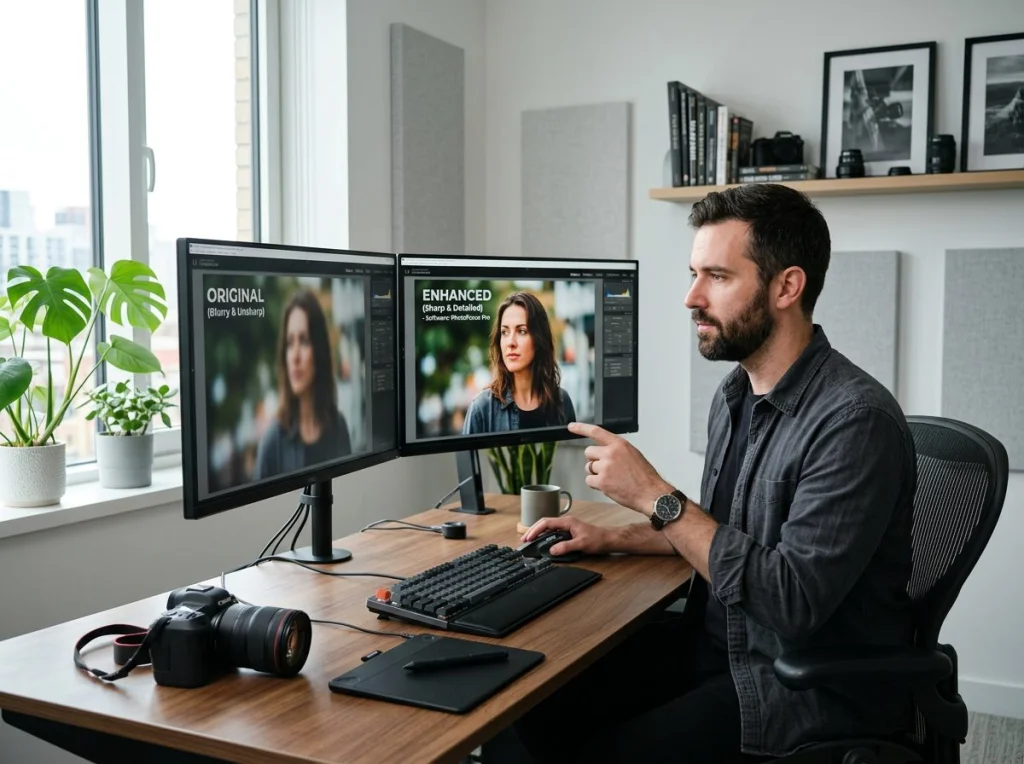


You've got a fantastic photo for your next marketing campaign, but there's one problem: it's too small. Maybe it's a customer testimonial photo from social media, an old product shot, or a screenshot that needs to be enlarged for a billboard. The usual approach—simply stretching the image—produces blurry, pixelated results that look unprofessional. This is where AI image upscale changes everything.
AI upscaling technology uses machine learning to intelligently enlarge images while preserving or even improving clarity and detail. Unlike traditional resizing, which just makes pixels bigger, AI upscaling analyzes the image and reconstructs missing information to create sharp, usable results. For marketing professionals, this means rescuing photos that would have otherwise ended up in the trash.
Why Standard Image Resizing Falls Short
Before diving into AI solutions, it helps to understand why traditional image resizing doesn't work. When you enlarge an image in Photoshop or most standard photo editors, the software uses interpolation—it guesses what pixels should look like between the existing ones. The result is soft, blurry, or blocky depending on the method used.
Here's the core problem: traditional resizing doesn't add new information. It just stretches what's already there. If your original image is 800 pixels wide and you need it to be 3000 pixels wide (a common requirement for large-format printing), you're asking the software to make 2200 pixels of new data from nothing. It can't do that intelligently—it can only guess.

For marketing materials, this compromise is unacceptable. A billboard with soft, pixelated graphics looks cheap. A printed brochure with blurry product photos damages your brand credibility. Your audience notices the difference between amateur and professional quality.
How AI Image Upscale Technology Works
AI image upscaling works differently. The technology trains on millions of high-quality image pairs to learn patterns. When you feed it a low-resolution image, the AI analyzes what it sees and uses learned patterns to reconstruct missing details—texture, edges, fine lines, and shading.
The best AI upscalers use a technique called super-resolution, which essentially teaches the algorithm to ask: "What would this image look like if it were taken with a high-resolution camera?" The AI generates plausible details based on what it learned during training, then fills in the gaps.
This approach works remarkably well for most marketing materials. Product photos, portraits, landscapes, and graphics all see dramatic improvements. The technology isn't perfect—it sometimes hallucinates details that weren't in the original—but for professional use, the results are typically excellent. You can also check out our AI professional headshots.
When to Use AI Image Upscale for Your Marketing
AI upscaling isn't the right solution for every situation, but it's invaluable in several common scenarios:
- Large-format printing: You need a product photo enlarged to 24x36 inches for a trade show banner, but you only have a 400x600 pixel image.
- High-definition displays: Your website or digital billboard requires 4K resolution, but your source image is standard HD.
- Social media repurposing: You want to use an old, lower-quality customer photo on your website or in a case study.
- Archive material: You're working with photographs from before modern camera standards and need them to look current.
- Screenshots and graphics: UI elements or diagrams captured at small sizes need to be enlarged without losing clarity.
The key question to ask yourself: Is the source image worth saving? If it has good composition and lighting but just lacks resolution, AI upscaling is your answer. If the original image is poorly lit, blurry from movement, or out of focus, no amount of upscaling will fix that.

Practical Steps to Upscale Images for Marketing Materials
Step 1: Assess Your Source Image
Before upscaling, evaluate what you're working with. Check the image dimensions and determine how large it needs to be for your final use. A photo destined for a 16x20 print needs different treatment than one for a web header. Also note the image quality: sharp originals upscale better than soft ones.
Step 2: Choose the Right Upscaling Factor
Most AI upscalers let you choose how much to enlarge: 2x, 4x, or sometimes 8x. A 2x upscale (doubling dimensions) is conservative and usually produces excellent results. A 4x upscale (quadrupling dimensions) works well for most images but requires higher quality source material. Going beyond 4x gets risky—the AI starts inventing details instead of reconstructing real ones.
Step 3: Use Specialized Tools, Not General Editors
Don't rely on Photoshop or general image editors for upscaling. Their built-in algorithms use basic interpolation. Instead, use specialized AI upscaling tools. For a practical overview of what's available, this video demonstrates several top-performing options:
For a visual walkthrough of the best free AI image upscalers available today, check out this helpful guide:
Step 4: Adjust Settings for Your Use Case
Different upscalers offer different settings. Some specialize in photographs, others in graphics or artwork. Check if the tool lets you specify what type of content you're upscaling. Photo-optimized settings produce different results than graphics-optimized ones, and choosing correctly matters.
Step 5: Review Before Finalizing
Always examine the upscaled result at 100% zoom before using it in final materials. Look for artifacts, unnatural patterns, or hallucinated details. Most AI upscalers do a solid job, but occasionally you'll spot issues that need addressing. Compare different upscaling factors if the tool offers them—sometimes a 2x upscale with a second pass looks better than a single 4x upscale.

Quality Considerations for Print and Digital
The requirements for print and digital displays are different, and your upscaling strategy should reflect that.
For Print Materials
Print requires high resolution. Most professional printers want 300 DPI (dots per inch) minimum. If you're printing at 8x10 inches, you need 2400x3000 pixels. This is where AI upscaling often shines. Starting with a 600x800 pixel image and upscaling it 4x gets you very close to print-ready dimensions while maintaining quality.
After upscaling, check the color profile. Print settings differ from screen settings. Some AI upscalers preserve color accurately; others shift tones slightly. Test with a small proof print if you're working on something important.
For Digital Displays
Digital use is more forgiving. A 4K display needs 3840x2160 pixels, but if your upscaled image doesn't hit those exact dimensions, you can pad or adjust without major quality loss. Web use is even more flexible—you can upscale to 1920x1080 or 2560x1440 and look excellent.
For digital materials, pay attention to file size. An upscaled 4K image can be quite large. Optimize it for web use with appropriate compression before deploying it.
Free vs. Paid AI Image Upscaling Tools
You have options across different price points. Free AI upscalers like ILoveIMG and Upscale.me produce surprisingly good results for basic needs. Paid services like Topaz Gigapixel AI and Let's Enhance offer more control and sometimes better quality, especially for complex images.
The trade-off is usually processing time and file size limits. Free tools often cap you at a certain file size or resolution; paid tools are more generous. For occasional marketing material upscaling, free tools work fine. If you're regularly processing images, a paid subscription saves time and frustration.
Common Mistakes to Avoid
Upscaling low-quality originals: Garbage in, garbage out. An image that's out of focus or poorly lit won't magically improve with upscaling.
Going too extreme with upscaling factors: A 10x upscale might be technically possible, but it rarely looks good. Stay within 2-4x for best results.
Skipping the preview step: Always check the result before using it in final materials. Spot unnatural artifacts early.
Ignoring color and format requirements: Upscaling is one step. Making sure the color profile and file format match your final use is equally important. You can also check out our AI dating profile photos.

Integrating Upscaled Images into Your Marketing Workflow
Once you've got a usable upscaled image, treat it like any other professional asset. Store it with clear naming conventions. Keep the original source image for future reference. Document the upscaling method and settings you used in case you need to reproduce the result.
For team collaboration, consider storing upscaled images in your brand asset management system alongside originals. This prevents others from accidentally using low-resolution versions when a better option exists.
AI image upscale has become a practical, reliable tool for modern marketing teams. When a photo has strong composition but insufficient resolution, upscaling gives you a second chance to use it professionally. Whether you're preparing materials for print, digital displays, or social media, understanding how to upscale correctly ensures your marketing materials look polished and intentional.
Ready to rescue your low-resolution marketing images? Start by assessing what you have in your archives. You might be surprised how many good photos are hiding at small sizes, waiting for an upscaling boost. Photo AI Studio's professional tools can help you prepare and transform images for your marketing campaigns—making sure everything you publish reflects your brand's quality standards.