
An AI headshot for LinkedIn is the modern way to get a professional profile picture without the usual fuss. Instead of hiring a photographer, you upload a handful of your own photos, and a tool like PhotoAI Studio uses artificial intelligence to create dozens of high-quality, polished headshots in different styles.
Why Your LinkedIn Headshot Is Your Digital Handshake
Think about it: your LinkedIn profile picture is the very first thing recruiters, clients, and future colleagues notice. It's more than just a photo; it's your digital first impression and a quick snapshot of your personal brand.
A sharp, professional headshot immediately signals credibility, confidence, and that you're someone who takes their career seriously. It does all that heavy lifting before anyone even reads your job title. This single image can seriously influence how many people view your profile and send connection requests. For a deeper dive, it's worth understanding why your LinkedIn profile really matters in building your career.
The Problem With Traditional Photoshoots
For a long time, the only way to get a great headshot was to book a traditional photoshoot. And while the results can be good, the process is often filled with headaches that busy professionals just don't have time for.
- The Cost: A professional photographer can set you back hundreds of dollars for a quick session, and you usually only get a few edited photos out of it.
- The Scheduling Nightmare: Trying to sync your calendar with a photographer's can feel impossible, often meaning you have to take time off work.
- The Time Sink: You have to factor in travel, the shoot itself, and then the long wait—sometimes weeks—to get the final images.
This old-school approach feels increasingly out of sync with how we work today. We need flexibility and results now, not next month.
The Rise Of The AI Headshot For LinkedIn
This is exactly where AI-generated headshots from platforms like PhotoAI Studio come in. The shift to AI has been massive, especially with the hybrid work boom now impacting over 58% of US companies. People need a great online presence, and they need it fast.
By mid-2024, one major provider had already generated 12 million headshots for over 80,000 users, and a full 25% of those were specifically for LinkedIn profiles. AI gives you a level of control and variety you just can't get from a traditional shoot.
By uploading a few casual photos, you can generate hundreds of studio-quality options in different outfits, styles, and backgrounds. This puts the creative power directly in your hands, allowing you to create the perfect ai headshot for linkedin that aligns perfectly with your brand.
Deciding between AI and a traditional photographer can be tough. Here’s a quick breakdown to help you compare the two.
AI Headshots vs Traditional Photoshoots
| Factor | AI Headshot (PhotoAI Studio) | Traditional Photoshoot |
|---|---|---|
| Cost | Typically $20-$40 for hundreds of options. | Can range from $250 to $1,000+ for a few final images. |
| Speed | Results are usually ready in under an hour. | The entire process can take days or even weeks. |
| Convenience | Upload photos from anywhere, anytime. No travel needed. | Requires scheduling, travel, and on-location shooting. |
| Variety | Generate hundreds of images with different outfits, backgrounds, and styles. | Limited to the outfits you bring and the studio setup. |
| Consistency | Can sometimes produce minor inconsistencies or artifacts. | Guarantees a consistent look and professional direction. |
| Human Touch | AI-driven; lacks the personal feedback of a photographer. | A photographer provides expert guidance on posing and expression. |
While a traditional photoshoot has its place, the speed, cost, and sheer variety offered by AI make it an incredibly practical choice for most professionals today.
Just look at the kind of polished, professional result you can get.
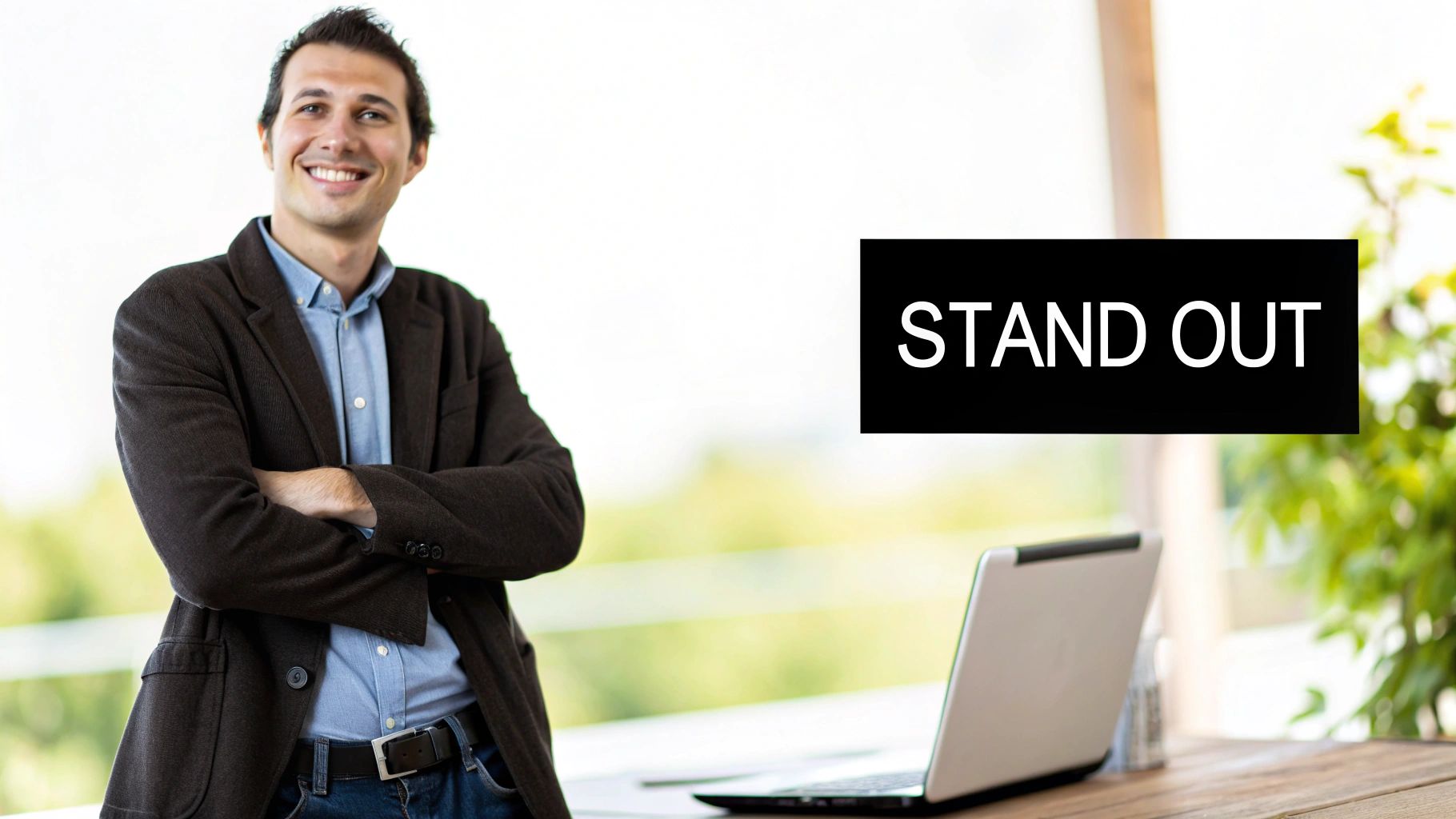
This image captures that confident, approachable look that makes a great first impression. With PhotoAI Studio, it's straightforward to create your ideal professional profile picture and start building a stronger professional presence online.
How to Select Photos for the Best AI Results
You’ve probably heard the old saying "garbage in, garbage out," and when it comes to creating a great AI headshot for LinkedIn, it's the absolute truth. The quality of the photos you feed the AI model is, without a doubt, the biggest factor in how good your final headshots will look.
Think of it this way: you're giving the AI the raw materials it needs to build a digital version of you. The better those materials are, the more realistic and professional the outcome will be. Taking a few minutes to carefully pick your source images before you even open PhotoAI Studio will save you a ton of headaches later on.
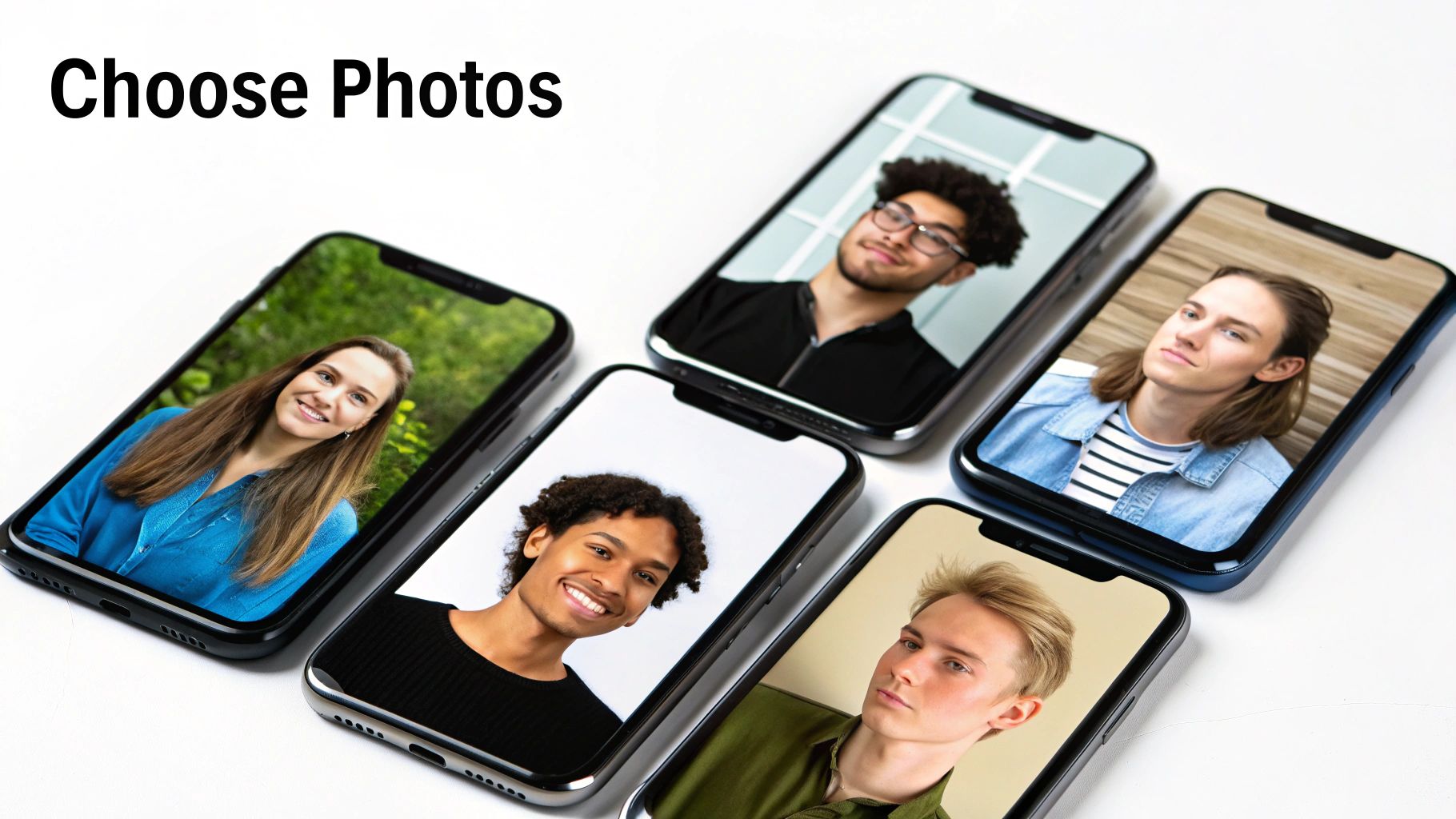
Building the Ideal Photo Collection
Your main goal here is to give the AI a complete, 360-degree understanding of your face. You don't need a professional photographer for this part—in fact, a bunch of casual selfies from your phone often works perfectly. The key is variety. PhotoAI Studio requires between 7 and 40 photos, and from my experience, aiming closer to 40 gives the model much more data to work with, leading to more accurate results.
A really strong photo set will have a good mix of these elements:
- Diverse Angles: Don't just give it front-on shots. Include some where you're looking straight at the camera, some three-quarter profiles, and even a few from the side. This helps the AI map the actual structure of your face.
- Varied Expressions: A LinkedIn profile isn't always about a huge grin. Upload photos with a few different expressions—a confident smile, a more neutral or thoughtful look, and maybe something in between. This gives you more options later.
- Different Lighting Conditions: The AI needs to see you in different lights. Mix in photos from indoors and outdoors. Bright sunlight, a cloudy day, and standard office lighting all highlight your features differently.
By providing this range, you're teaching the AI what you really look like, not just what you look like in one specific photo. It keeps the results from looking flat or repetitive.
Remember, the AI is learning your facial identity, not your fashion sense. The more varied your source photos are, the more flexible and accurate the AI model becomes. Think of each photo as a new data point for it to learn from.
What to Avoid When Choosing Your Photos
Just as important as what you should include is what you absolutely shouldn't. Certain things can seriously confuse the AI and lead to some pretty strange-looking headshots. Be strict about filtering these out.
Here’s a quick checklist of things to ditch from your selection to get the best AI headshot for LinkedIn:
- Anything Blocking Your Face: This is the big one. No sunglasses, and if you can, avoid photos with regular glasses. Hats that cast shadows across your eyes or forehead are also a no-go. The AI needs a clear, unobstructed view.
- Heavy Makeup or Filters: Anything that dramatically alters your features, like heavy makeup or an Instagram filter, is a bad idea. You want the headshot to look like you, so start with photos that show your natural appearance.
- Blurry or Low-Res Images: If a photo is pixelated or out of focus, the AI can't see the details it needs. A sharp, clear photo from your phone is infinitely better than a blurry one from a fancy camera.
- Group Shots: Never upload photos with other people in them. Even if you crop them out, another face in the frame can throw the whole training process off. Make sure you're the only person in the shot.
- A Bunch of Look-Alike Photos: Avoid using 5 or 10 shots from the same wedding or party where you have the same outfit, expression, and lighting. Each photo should give the AI new information.
Bringing Your Headshot to Life in PhotoAI Studio
Alright, you’ve got your best photos picked out. Now for the fun part: heading into PhotoAI Studio to put the AI to work. All that prep work is about to pay off as you watch the platform build a digital model of you. The whole process is surprisingly straightforward, designed to take you from a handful of selfies to a full gallery of pro-level headshots without any technical headaches.
First things first, you'll need an account. Once you’re logged in, you'll see a dashboard with a bunch of different creative tools. The one we're after is the Professional Headshots package. It’s been specifically trained to create the exact kind of polished images that work best for LinkedIn.
Kicking Off the AI Training
Once you've selected the headshot package, the system will ask you to upload the photos you just gathered. It's a simple drag-and-drop interface, so getting your images in is a breeze. This is the critical moment where the quality of your source photos really makes a difference. The AI analyzes every single pixel to learn your unique facial features from all angles.
This initial step is all about training. The AI isn't just cutting and pasting your face onto a stock photo; it’s building a complex, three-dimensional model of you based on the different expressions and lighting in your uploads. This is what ensures your final AI headshot for LinkedIn actually looks like you.
After your photos are uploaded, you just hit the button to start the training. That's it. Your work is done for now—the algorithms take over from here.
How Long It Takes and How Credits Work
The big question everyone asks is, "How long do I have to wait?" Honestly, it's faster than you'd think. A powerful tool like PhotoAI Studio needs just 7-40 clear selfies to generate hundreds of options, and you’ll typically have them back within 60 minutes to 48 hours.
While the AI is doing its thing, let’s talk about the credit system. PhotoAI Studio runs on credits, which are like tokens you spend to generate images. When you sign up, you usually get a welcome bundle of free credits to play with. This is perfect for taking the platform for a spin and generating your first batch of headshots without spending a dime.
My Advice: Treat those free credits as your test drive. Build your first model, see the quality for yourself, and get a feel for the process. It’s a no-risk way to decide if you want to invest in more for future projects.
Many people get a fantastic headshot using just the initial free credits, especially if they’ve been careful with their photo selection. If you want to experiment with more styles or generate a wider variety, you can always buy more credit packs. The best place to start is the free professional headshot generator.
Finding Your Way Around the Dashboard
The PhotoAI Studio dashboard is clean and easy to navigate. You won't get lost in a sea of confusing options.
As you can see, everything is clearly labeled. "Professional Headshots" is right there, making it simple to get started.
You'll get a notification as soon as your model is done training. This is the exciting part. Head over to your personal gallery, and you'll find it filled with dozens—sometimes hundreds—of different headshots. You’ll see yourself in different outfits, backgrounds, and lighting setups that you never actually posed for. That’s the magic of it. You get a massive number of choices without the cost and hassle of a traditional photoshoot. Now, it's time to sift through them and find the perfect one.
Using Prompts to Define Your Professional Style
Once PhotoAI Studio has finished training on your photos, you’ll get your first gallery of headshots. Think of this initial batch as the raw material. The AI has learned your face, but now it’s time for you to step in as the art director. This is where you use styles and custom prompts to craft an AI headshot for LinkedIn that truly reflects your professional identity.
The first images are a fantastic baseline, but they don't know your industry, your role, or your personality. Your job now is to guide the AI, moving beyond a generic photo to create a headshot that tells your professional story at a glance.
Mastering Presets for Quick Results
The fastest way to get started is with PhotoAI Studio's pre-built styles. These aren't just simple filters; they are complete thematic packages designed to give you a specific look and feel without needing to write a single word. Presets like 'Corporate' or 'Creative' are powerful shortcuts, bundling together specific settings for lighting, background, and even your outfit.
For example, choosing the 'Corporate' style will instantly generate images of you in business attire—think sharp suits and blazers—against clean, modern office backdrops. The lighting is typically crisp and professional, perfect for someone in finance or law.
On the other hand, the 'Creative' preset might put you in a relaxed studio setting with softer, more artistic lighting. The outfits tend to be more smart-casual, fitting right in with roles in marketing, design, or the tech world. Your first big decision is simply choosing the preset that best aligns with your field.
Crafting Custom Prompts for Total Control
While presets get you in the right ballpark, custom text prompts are how you hit a home run. This is your direct line to the AI, letting you call the shots on every little detail—from the color of your shirt to the mood of the photo.
The trick is to be specific. A vague prompt like "professional" will give you a vague, generic result. To really get what you want, you need to paint a clear picture with your words. If you're new to this, learning how to prompt AI to create an image can make a huge difference.
Here are a few real-world examples of how you might use custom prompts:
For a Software Developer: You could try, "man wearing a dark gray polo shirt, smiling confidently in a bright, modern tech office with blurred background." This prompt creates an image that’s professional but still approachable and modern, which fits the tech culture perfectly.
For a Financial Advisor: A more traditional prompt works best here. Something like, "woman wearing a classic navy blue blazer and white blouse, professional headshot with soft studio lighting and a neutral gray background." This combination conveys expertise, stability, and trust.
For a Graphic Designer: To show off your creative side, you could use a prompt like, "person with a warm smile, wearing a stylish black turtleneck, shot with natural light against a textured, dark-colored wall." This immediately suggests creativity and a good eye for aesthetics.
This diagram breaks down the entire process into three simple stages, from uploading your photos to getting your final results.
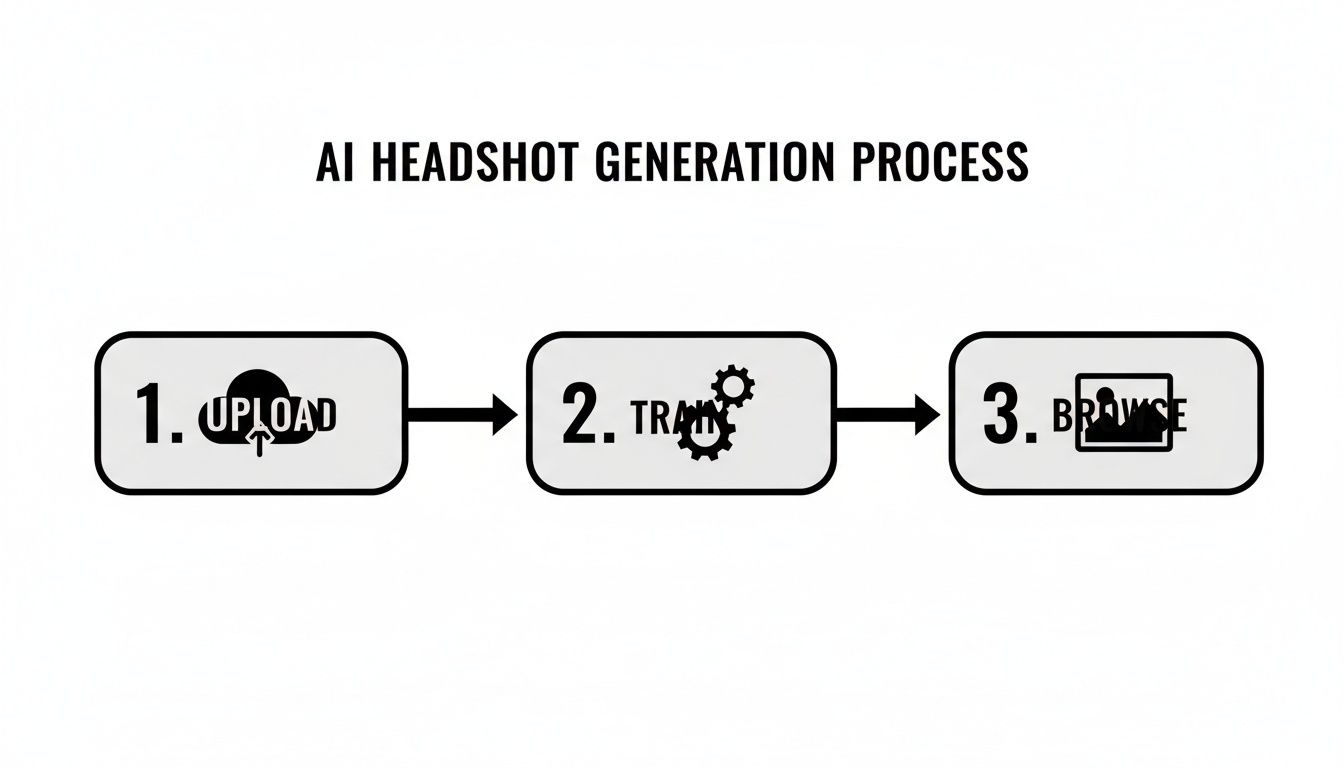
As you can see, what you put in directly impacts what you get out. High-quality photos in the beginning give the AI more to work with, leading to a much better set of headshots to refine later.
Combining Styles and Prompts
For the best results, don't choose between presets and prompts—use them together. Start with a base style that gets you close, like 'Corporate,' and then layer on a custom prompt to dial in the specifics.
For instance, you could select the 'Corporate' preset and then add a simple prompt like, "wearing a charcoal gray suit with a light blue tie." This approach gives the AI a solid foundation to build on while giving you granular control over the final details, ensuring the headshot is exactly what you had in mind.
Key Takeaway: Don't be afraid to experiment. The beauty of this process is the ability to iterate. Mix and match presets and prompts, and keep generating until you land on an AI headshot for LinkedIn that doesn't just look like you, but feels like the professional you are.
Choosing and Optimizing Your Final Headshot
Alright, the AI has done its part, and now you have a whole gallery of potential headshots. This is the fun bit—sifting through the results to find that one perfect image that will define your digital first impression. The trick is to look at them with a critical eye, searching for that sweet spot where authenticity meets professionalism.
Don't just grab the first one that catches your eye. Take a few minutes to scroll through everything PhotoAI Studio has generated. You'll probably find a handful of really strong contenders, and your mission is to pick the one that truly nails your professional brand.
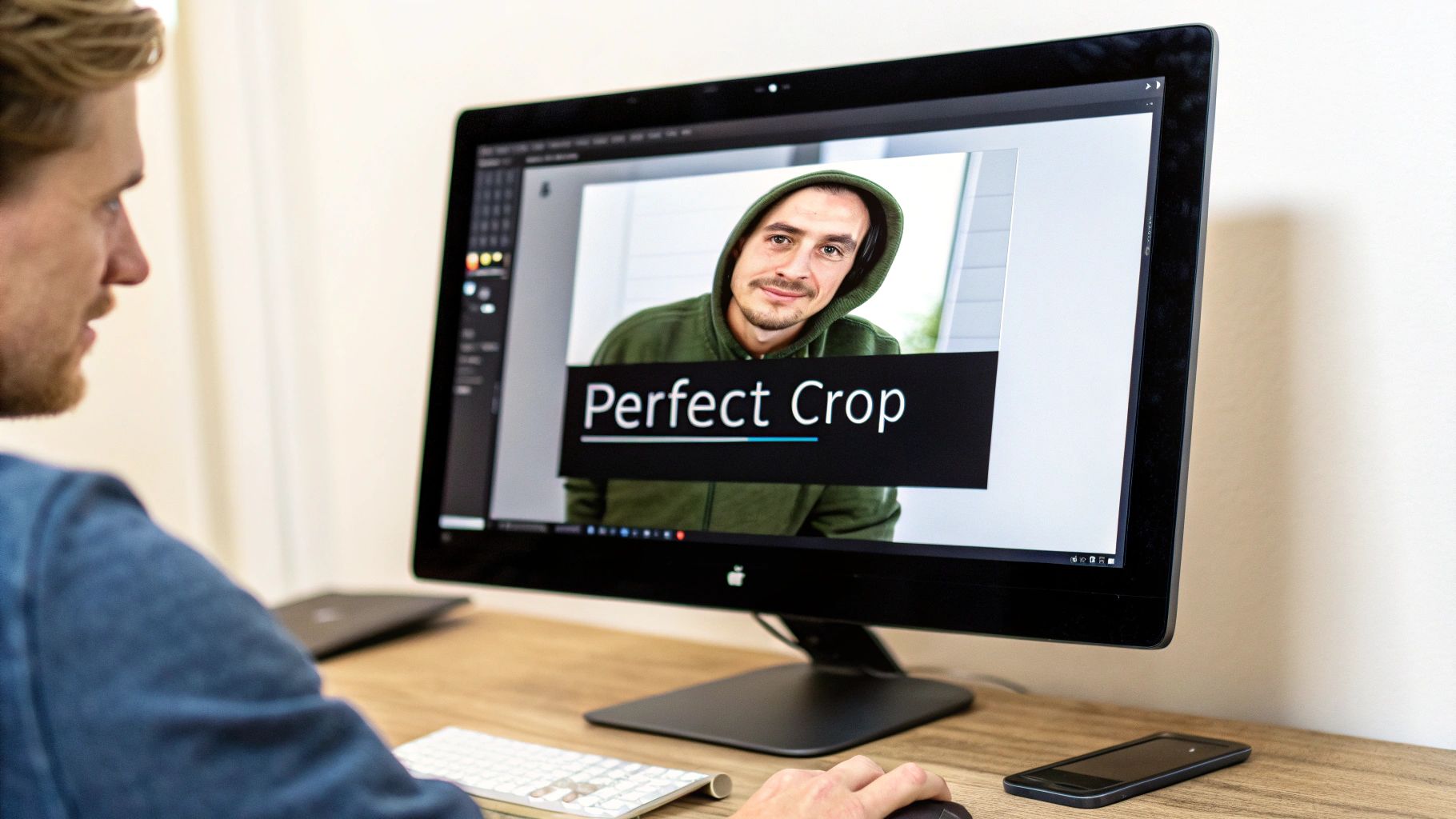
What to Look for in a Winning Headshot
As you browse your gallery, have a mental checklist ready. A great AI headshot for LinkedIn isn't just about looking good; it's about looking like you. AI can sometimes create tiny, weird artifacts, so a sharp eye is your best friend here.
Zoom in and pay close attention to these details:
- Facial Consistency: Does it actually look like you? Check your jawline, nose, and the overall shape of your face against your original photos. You want a match, not a distant cousin.
- Realistic Eyes: The eyes are everything in a portrait. Make sure they look natural, are aligned correctly, and have that little bit of light in them. Ditch any image where the eyes seem glassy, weirdly colored, or lopsided.
- Authentic Skin Texture: A fantastic AI headshot won't make you look like a plastic doll. It should keep some natural skin texture. If an image looks overly smoothed or airbrushed, it’s going to scream "fake" and land squarely in the uncanny valley.
- Overall Professional Vibe: Does the picture feel right for your industry? The clothes, the background, and your expression should all come together to send the right signal to recruiters, clients, and colleagues.
By keeping these points in mind, you can confidently choose a headshot that's both polished and genuinely you.
Making Minor Tweaks with Built-In Tools
Even the best AI generation might need a little nudge to be perfect. The good news is PhotoAI Studio has built-in editing tools, so you don't need to fire up Photoshop for minor fixes. The Photo Editor is your command center for these final touches.
You can make simple but powerful changes, like adjusting brightness, contrast, or saturation. A tiny bump in brightness can make your face pop, while a subtle contrast adjustment adds depth. It’s these small refinements that can take a headshot from good to great.
The goal of editing isn't to change how you look, but to enhance the image's quality. Think of it as the digital equivalent of finding the perfect lighting in a traditional photoshoot.
Another tool you shouldn't overlook is the Photo Upscaler. This clever feature uses AI to blow up your image's resolution without it getting all blurry and pixelated. If you plan to use this headshot for more than just LinkedIn—say, on your website or in a speaker bio—upscaling ensures it stays crisp and professional no matter the size.
Optimizing for LinkedIn’s Technical Specs
Once your headshot is selected and polished, there's one last crucial step: formatting it for LinkedIn's specific requirements. All your hard work can be undone by a bad upload that leaves your photo blurry or awkwardly cropped.
Here’s exactly what you need to get right:
- Ideal Aspect Ratio: LinkedIn demands a 1:1 square crop. When you frame your shot, make sure your face is centered with a little space above your head. Cropping too tight can look aggressive and a bit claustrophobic.
- Minimum Resolution: The image has to be at least 400x400 pixels. My advice? Always aim higher. It's much better to upload a larger, clearer file and let LinkedIn handle the compression. The Photo Upscaler is perfect for hitting this mark.
- File Size and Format: Keep the file size under 8MB. Stick to standard formats like JPG or PNG—they’re reliable and universally compatible.
With your image chosen, tweaked, and properly formatted, you're holding a powerful AI headshot for LinkedIn. You're ready to upload it and make a killer first impression.
Answering Your Top Questions About AI Headshots
Jumping into the world of AI-generated images for something as important as your professional brand can feel a little strange. It's a new way of doing things, so it's only natural to have a few questions.
Let's walk through some of the most common things people ask before creating their AI headshot for LinkedIn. I want you to feel completely confident about using this technology, because when you understand it, you can use it to your advantage.
Can People Tell It’s an AI Headshot?
This is probably the number one concern, and for good reason. The honest answer? It really depends on the final image you choose.
A low-quality generation with tell-tale signs like wonky hands, glassy eyes, or an unnaturally smooth "uncanny valley" texture will definitely stand out. But a well-made headshot from a powerful tool like PhotoAI Studio? To the average person scrolling through LinkedIn, it’s often impossible to distinguish from a real photograph.
The secret is being picky. As you sift through your generated images, scrutinize them. Look for the ones that have natural skin texture, believable lighting, and facial features that are consistently yours. If you choose carefully, the vast majority of people won't have a clue.
What Are the Ethics of Using AI Photos?
This is a big conversation right now, and it's an important one. When it comes to an AI headshot for LinkedIn, the main ethical question boils down to authenticity. Are you presenting an honest version of yourself?
If the headshot is a realistic and current representation of what you look like, you're on solid ground. You're simply using a new tool to get a professional result.
Where it gets tricky is if you use AI to fundamentally change your appearance—making yourself look significantly younger or altering your core features. The point is to create a polished, professional version of you, not an entirely different person.
Our Takeaway: Honesty is the best policy. You don't need to add a "Made with AI" disclaimer to your profile, but if someone asks, don't hide it. Think of it as a modern tool for a classic need, not a way to mislead anyone.
Do Recruiters Care If You Use AI?
Opinions are still forming on this, but the conversation is changing fast. A recent Ringover study of 1,087 recruiters found that 88% felt that using an AI headshot should be disclosed.
However, the trend is undeniable. One AI provider noted that 25% of their customers were creating headshots specifically for LinkedIn. You can see from market trends just how quickly this is being adopted.
At the end of the day, recruiters care most about two things: professionalism and authenticity. As long as your photo looks sharp and is a true representation of you, how it was made is becoming less and less important. A fantastic AI headshot will always beat a cropped vacation photo or a blurry selfie.
Is It Worth the Cost?
Let's look at the numbers. A traditional headshot session with a professional photographer can easily set you back several hundred dollars, and you might only walk away with a handful of edited images.
AI headshot generators flip that model on its head. You can get a huge gallery of hundreds of different poses, outfits, and backgrounds for a small fraction of that cost.
For most professionals trying to build their brand, the value is obvious. It saves you time, it saves you a lot of money, and it gives you more creative control than you'd ever get from a standard photoshoot. To get a better idea, you can check out the PhotoAI Studio pricing plans to see which one makes sense for you.
Ready to create a stunning, professional headshot that will make your LinkedIn profile shine? PhotoAI Studio gives you the tools to generate hundreds of high-quality options in minutes. Get started with PhotoAI Studio today!