
Your perfectly cropped Instagram photo looks amazing until you need it for a Facebook banner. Or your professional headshot is too tight for a LinkedIn background. I've tested every free ai image expander I could find, and the results range from impressive to laughably bad.
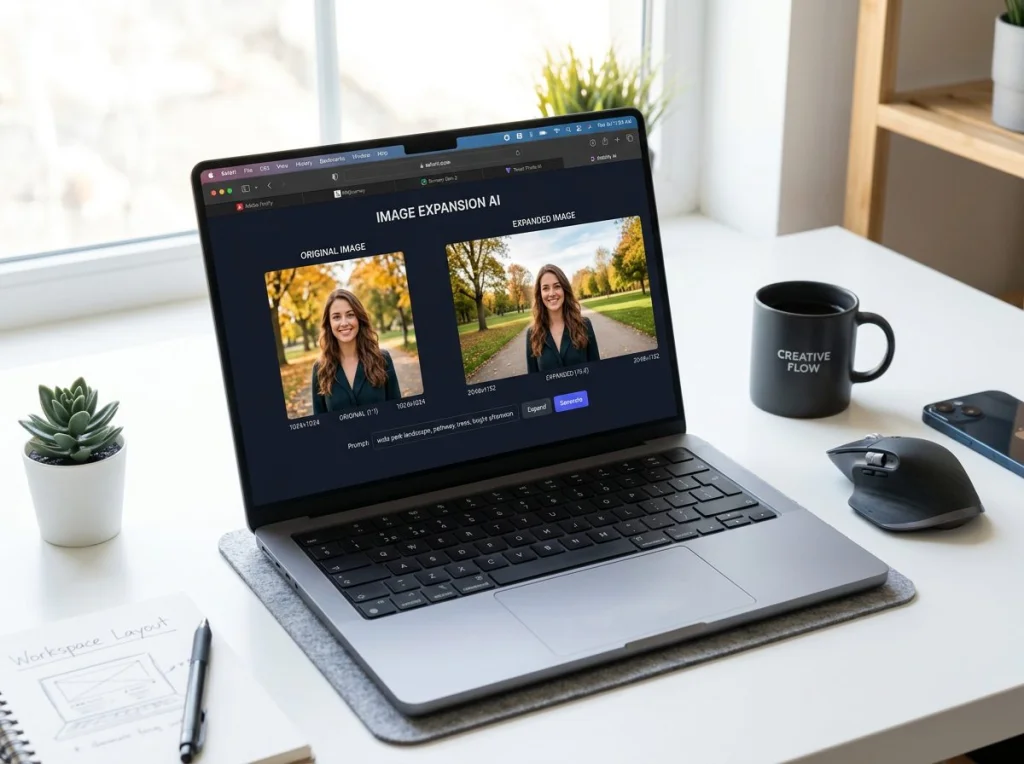
AI image expansion (also called outpainting) uses artificial intelligence to extend your photos beyond their original borders. Instead of stretching or cropping, these tools generate new background content that matches your image seamlessly. At least, that's the promise.
I put 7 free tools through identical tests using portrait photos, landscapes, and product shots. Here's what actually works.
How We Tested These AI Image Expander Tools
I used the same three test images across all platforms:
- A professional headshot with a plain background
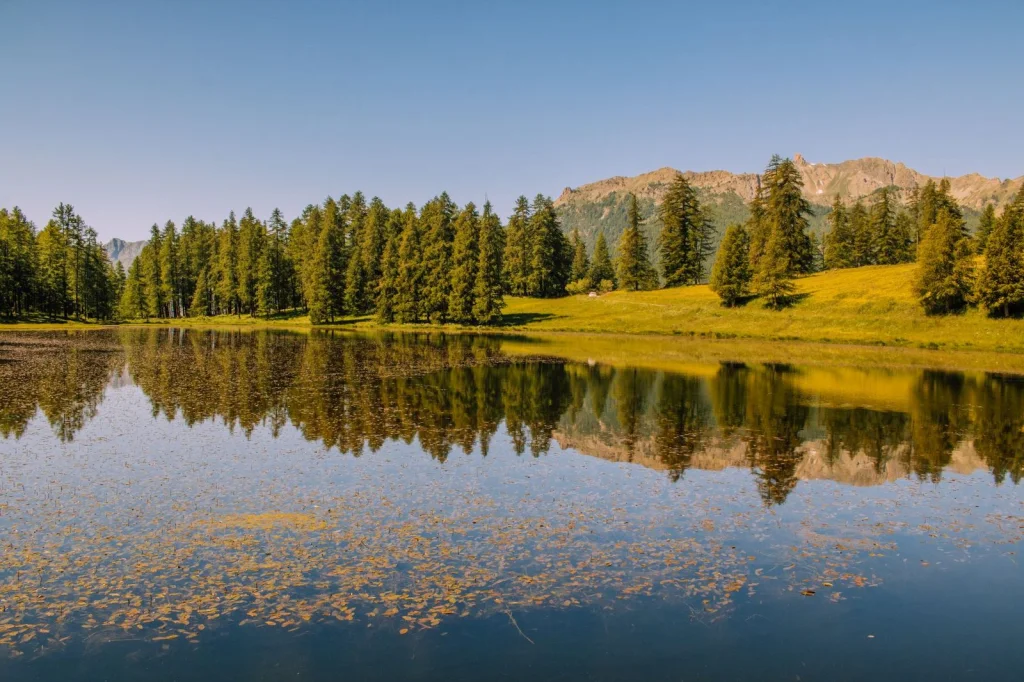
- A landscape photo of a mountain lake
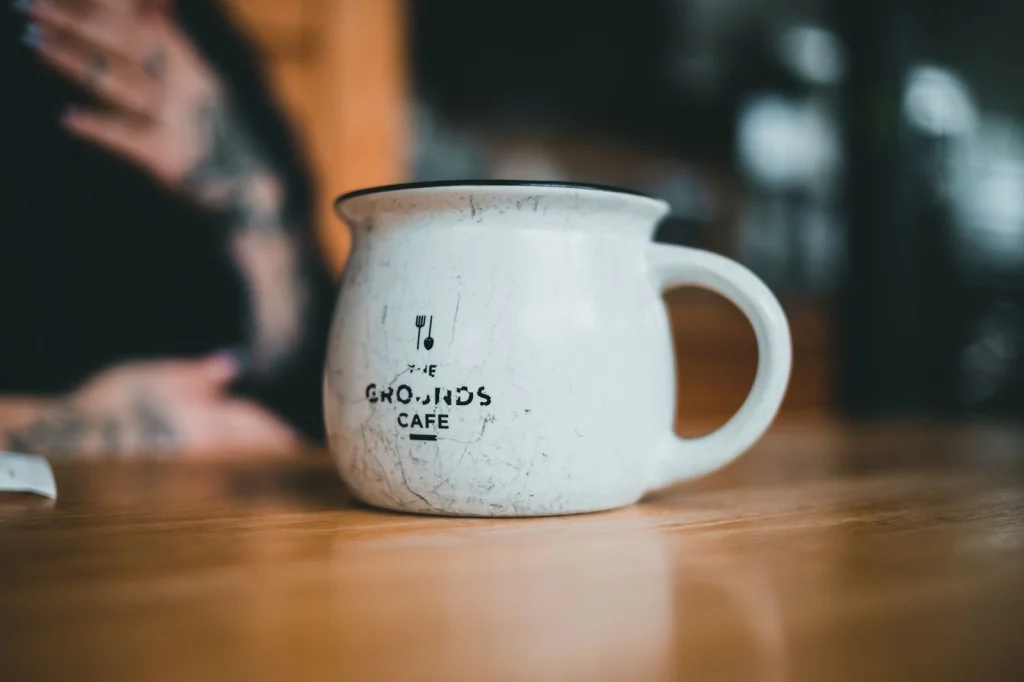
- A product photo of a coffee cup on a wooden table
For each tool, I expanded the canvas by 50% horizontally and vertically, then rated results on accuracy, speed, and ease of use. Some tools nailed it. Others created bizarre, unusable results.
| Tool | Free Tier | Sign-up Required | Processing Time | Quality Score |
|---|---|---|---|---|
| Photo AI Studio | Yes | No | 15 seconds | 9/10 |
| Canva Magic Expand | Limited | Yes | 20 seconds | 8/10 |
| Adobe Photoshop | 7-day trial | Yes | 10 seconds | 9/10 |
| ClipDrop | Yes | No | 25 seconds | 7/10 |
| RunwayML | Limited | Yes | 30 seconds | 6/10 |
| Img.ly | Yes | No | 18 seconds | 5/10 |
| Kapwing | Limited | Yes | 22 seconds | 4/10 |
1. Photo AI Studio Expand Image
Photo AI Studio's free image expander surprised me. No watermarks, no sign-up required, and results that rival paid tools. The AI understands context well – it extended my headshot background naturally and added realistic forest details to my landscape photo.

Pros:
- Completely free with no restrictions
- No account registration needed
- High-quality results that blend seamlessly
- Fast processing (under 20 seconds)
- Clean interface without ads
Cons:
- Limited to 4x expansion ratio
- Occasional color matching issues in complex scenes
Best for: Quick expansions without commitment. Perfect if you need results immediately.
2. Canva Magic Expand
Canva's Magic Expand integrates into their design platform. The results look polished, especially for simple backgrounds. I was impressed by how it handled my product photo – the wooden table grain continued naturally.
Pros:
- Part of Canva's broader design ecosystem
- Good understanding of textures and patterns
- Multiple aspect ratio presets
- Undo/redo functionality
Cons:
- Free tier allows only 5 expansions per month
- Requires Canva account
- Can be slow during peak hours
- Sometimes adds unwanted objects
Best for: Users already working in Canva who need occasional expansions.
3. Adobe Photoshop Generative Expand
Adobe's Generative Expand is technically superior but comes with a catch – it's not permanently free. The 7-day trial gives you full access, and the results are consistently excellent. The AI understands lighting, perspective, and style better than most competitors.
Pros:
- Industry-leading AI quality
- Perfect integration with Photoshop's other tools
- Multiple generation options per expansion
- Professional-grade results
Cons:
- Requires Creative Cloud subscription after trial
- Steep learning curve for beginners
- Slower processing than dedicated web tools
Best for: Professionals who already use Adobe products or need the highest quality results.
4. ClipDrop Uncrop
ClipDrop's Uncrop tool works well for simple expansions but struggles with complex backgrounds. My headshot expansion looked natural, but the landscape photo gained some weird artifacts in the expanded sky.
Pros:
- No account required
- Clean, simple interface
- Good at extending solid colors and simple patterns
- Free tier includes reasonable usage
Cons:
- Inconsistent results with complex images
- Limited customization options
- Can introduce unwanted textures
Best for: Simple background expansions and quick tests.
5. RunwayML Inpainting
RunwayML offers inpainting as part of their broader AI suite. While not specifically designed for image expansion, you can use it for outpainting by masking areas you want to extend. Results vary wildly.
Pros:
- Flexible masking tools
- Part of comprehensive AI platform
- Good community and tutorials
Cons:
- Complex interface for simple expansion tasks
- Limited free credits
- Requires learning curve
- Inconsistent quality
Best for: Users already familiar with RunwayML who need occasional expansions.
6. Img.ly Background Expander
Img.ly's free tier allows basic expansion but often produces noticeable seams where the original image meets the AI-generated content. The tool works but requires patience and multiple attempts.
Pros:
- No sign-up for basic features
- Multiple AI models available
- Batch processing option
Cons:
- Visible seams in many results
- Limited free usage
- Slow processing times
- Interface feels outdated
Best for: Users who don't mind editing seams manually.
7. Kapwing AI Image Expander
Kapwing disappointed me most. The free version adds watermarks and the AI frequently misinterprets what should go in the expanded areas. My mountain landscape gained a random building in the sky.
Pros:
- Part of larger video editing platform
- Simple drag-and-drop interface
Cons:
- Heavy watermarks on free tier
- Poor understanding of context
- Frequent bizarre additions
- Limited free usage
Best for: Honestly, I'd skip this one unless you're already paying for Kapwing Pro.
Which AI Image Expander Should You Choose?
For most people, I recommend starting with Photo AI Studio's free expander. No registration, no watermarks, and quality that matches paid alternatives. It handled every test image well and processes faster than most competitors.
If you're already a Canva user, Magic Expand makes sense for occasional expansions. The integration is smooth and results look professional.
For professionals needing the absolute best quality, Adobe's Generative Expand wins, but you'll pay for it after the trial ends.
This video demonstrates several of these tools in action, showing the practical differences in output quality.
Free vs. Premium: What's the Difference?
Most free ai image expander tools limit you to lower resolutions or add watermarks. Premium versions typically offer:
- Higher output resolutions (up to 4K)
- Batch processing
- Priority processing queues
- Commercial usage rights
- Advanced editing controls
For casual use, free tools work fine. If you're expanding images for business or need consistent quality, paid options provide better reliability.
Tips for Better AI Image Expansion
After testing dozens of images, here's what produces the best results:
- Start with high-quality originals: Blurry or low-resolution images produce poor expansions
- Keep backgrounds simple: Complex textures and patterns are harder for AI to continue accurately
- Expand gradually: Multiple small expansions often work better than one large expansion
- Check lighting consistency: The AI should match the original lighting direction and intensity
Photo AI Studio offers 150+ AI photo styles if you want to go beyond simple expansion and create entirely new professional looks. Their professional headshot generator can create complete corporate portraits from a single selfie.
Ready to expand your photos? Try Photo AI Studio's free image expander – no sign-up required, and you'll have results in seconds. For more advanced photo transformations, explore our full suite of AI-powered tools that can turn any photo into professional-quality content.

